Skip to content
Home     Guides & Resources     Case Center     How to Use Case Center Effectively During Your Appearance

How to Use Case Center Effectively During Your Appearance

The judicial officer will only have access to Case Center. Counsel and parties must ensure all documents they intend to present at their hearing are accessible through Case Center. The presiding judicial officer may adjourn the hearing if documents are not accessible through Case Center.

The presiding judicial officer will be able to see:

  • When parties were invited to the case;
  • When each party accessed the case; and
  • When the parties’ documents were uploaded to Case Center.

To best prepare for your hearing, counsel and parties should:

  1. Ensure hyperlinks are working correctly;
  2. Ensure all required documents are uploaded; and
  3. Ensure that their notes refer to the Case Center page numbers.

TheHow to Organize and Upload Documents” page contains more information on these topics.

During this review, counsel and parties should identify any document that has been inappropriately uploaded by opposing parties by making a note in Case Center identifying the document and why it should not have been uploaded. More information on using the notes function in Case Center is available below.

Counsel and parties should refer to the Case Center generated page numbers when referencing a document during the hearing. Counsel and parties can download an index of all documents including their system-generated page numbers so it is accessible during the hearing.

To download an index of Case Center-generated page numbers:

  1. Find the case.
  2. Select the Update Case
  3. Select Bundles.
  4. Locate the bundle you would like to reference.
  5. Select Download.
  6. Case Center will display the following options:
    1. Download Complete Bundle – This will download a PDF copy of all the documents that have been uploaded into the bundle, including the Case Center-generated page numbers. This provides a copy of the documents in the bundle for use offline. This downloaded PDF will contain bookmarks in Adobe that allow you to easily access each document similar to the Case Center “Review” screen.
    2. Download Bundle Index – This will download a PDF which identifies the title, date, and Case Center-generated page numbers for all documents that have been uploaded into the bundle. This provides a quick reference point of the documents in the bundle with their system-generated page numbers.

If your matter is proceeding virtually through Zoom, the Court will provide the virtual hearing link directly through your Case Center case.

The court will provide the virtual hearing link directly through Case Center.

To access the virtual hearing link:

  1. Find the case.
  2. Select Update Case.
  3. Case Center will open the Case Home page.
  4. Select the Video Conference Link
  5. Case Center will open a new tab that will take you into the virtual hearing.

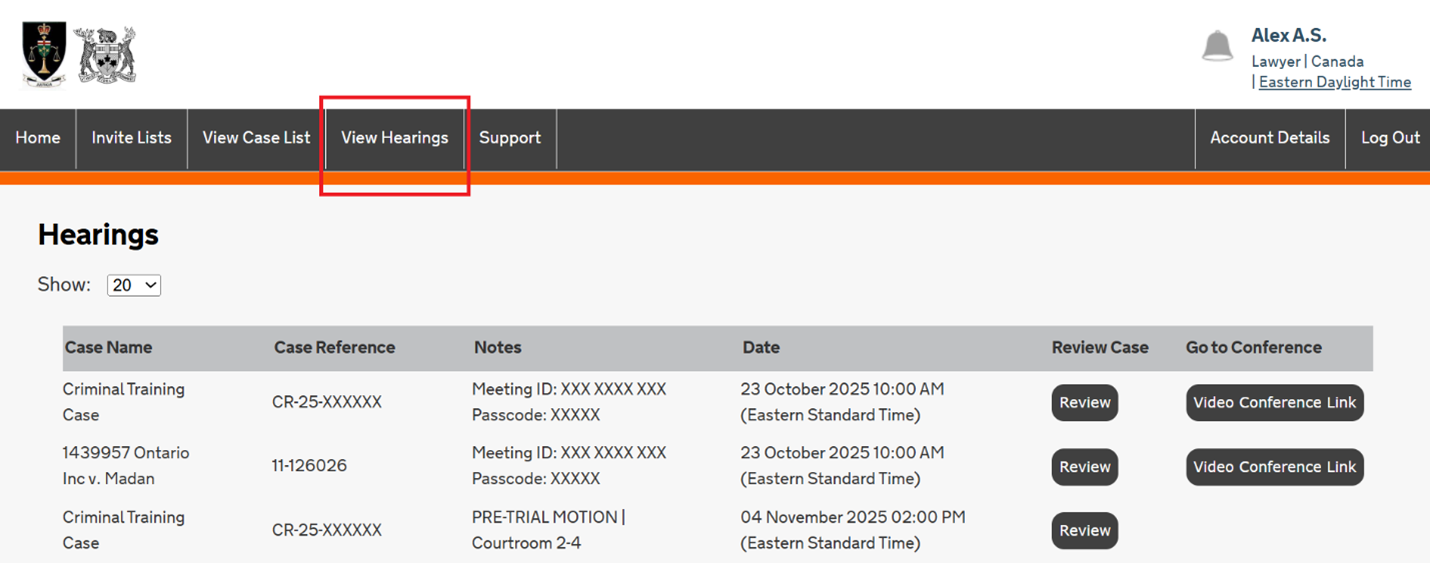
Tip – You can also access virtual hearing information using the View Hearings page from the top menu. This page will display a list of your upcoming matters in chronological order and will include the Zoom link or teleconference information for virtual hearings.

Counsel in civil, Divisional Court and family cases can invite their client to Case Center. This will allow the party to access the “Video Conference Link” button on Case Center and view the uploaded documents to follow along during their hearing.

Counsel can also give their client access to the virtual hearing details without inviting them to Case Center by following these steps:

  1. Find the case.
  2. Select Update Case.
  3. Case Center will open the Case Home page.
  4. Select the Video Conference Link
  5. Case Center will open a new tab for Zoom.
  6. Copy the link exactly as it appears in your browser and paste that link into your communication with your client.

This link will take your client directly to the Zoom hearing waiting room.

There are two ways to view documents in Case Center: through the Case Index or through the Review screen.

The Case Index provides a list of all documents that are available in the case:
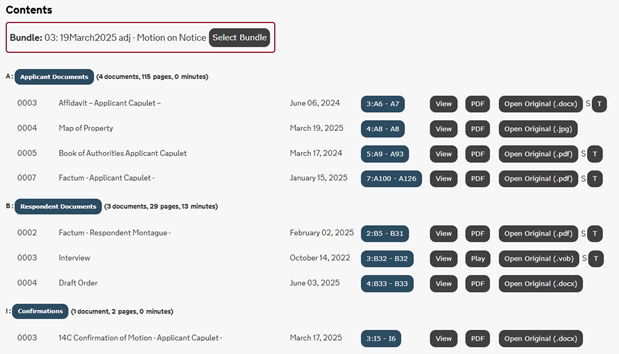
Counsel and parties can download the original version of a document if it was uploaded in a format other than PDF through this page.

To access the “Case Index” page:

  1. Find the case.
  2. Select Update Case.
  3. Select Index.

The Review screen provides the ability to navigate and view documents. Counsel and parties can also access any links within documents, play video and audio files, present documents during the hearing, and use Case Center’s notetaking feature.

To access the “Review” screen:

  1. Find the case.
  2. Select Review.

The Review screen is split into 4 main sections:
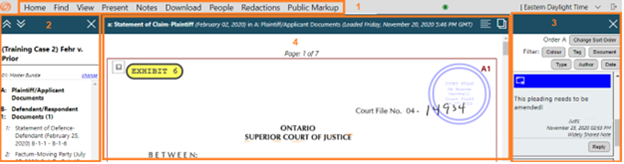
A diagram of the review screen split in 4 sections


  1. Top menu – Provides options to search and navigate through the documents.
    • Use the Find tab to:
      • Search Case – look for a specific word or phrase in the documents.
      • Find Page – go directly to a specific page in the case using Case Center’s auto-generated page numbers).
    • Use the View tab to:
      • Zoom in or out of documents.
    • Use the Present tab to:
      • Direct others to specific areas in the documents.
    • Use the Notes tab to create notes or mark up the documents.
  2. Index Menu – Displays the list of uploaded material, organized by bundle and section.
    • Switch between bundles by selecting the “change” button.
    • Documents are organized by section. Select the bolded title of each section to expand or collapse the list of documents.
  3. Notes Area – Provides a list of notes made in the case.
    • Case Center has note options which include highlighting, copying text, freehand drawing, and making text notes that point to specific pages in Case Center.
    • Notes are defaulted as “private” – only the user who made the note will be able to see it. The judicial officer, court staff, and other counsel and parties can not view a “private” note.
    • More information on the notes feature is available below.
  4. Document Area – Displays the selected document.
    • Scroll through each document to read and review them.
    • Videos and audio files are accessible with the ability to play, pause, and adjust the volume.

For more information on viewing documents in Case Center, please refer to the following video tutorial:

Counsel and parties are required to access Case Center on the day of the hearing and direct the presiding judicial officer to the relevant area in their documents. Case Center is used whether the hearing is in-person or virtual.

Counsel and parties attending a hearing in person may wish to register for a Guest Wi-Fi account to use the courthouse’s Wi-Fi. You can register for an account here: https://forms.office.com/r/D5rVZe8d32

To easily access Case Center on the day of your hearing:

  1. Log into Case Center.
  2.  Find the case (found on your “View Case List” screen or through the “View Hearings” screen).
  3. Select Review. This will open a new tab to display the documents.
  4. For virtual hearings, select Video Conference Link. This will open a new tab in the virtual hearing waiting room.

Counsel and parties will have access to the hearing bundle, orders and endorsement bundle, and pleadings bundle (if applicable). To navigate through the different bundles, users should select the “change” button underneath the case name on the left of the screen. Counsel and parties can select the bundle from the popup that appears.

Once in the correct bundle, counsel and parties can search for specific information in the documents by following these steps:

  • Open the “Find” tab at the top of the screen and use the Search Case
    • Enter a word or reference. Case Center will show all references to that term in that current bundle.
    • Narrow your search to only the current document or the current section for more precise results.
    • Click the document title to go directly to the page where the term appears. The searched term will be highlighted in pale yellow for easy reference.
  • If another party references a Case Center generated page number, open the “Find” tab at the top of the screen and use the Find Page
    • Enter the Case Center generated page number and press enter on your keyboard. Case Center will take you directly to that page.

Counsel and parties can direct the judicial officer and other parties to a specific page in Case Center during their hearing. There are two ways to do this:

  1. By Page Number
    • Provide the Case Center-generated page number (e.g., B17) when referring to your material.
  2. By Directing Others in Real Time
    • Direct the presiding judicial officer and other counsel and parties to the page you are referencing by accessing the “Find” tab at the top of the screen and selecting “Direct others to Page”.
      • Before using this feature, make sure the “Lawyers, Judges, Court Staff” option is enabled (a checkmark will appear on the icon). If it is not checked, select it, then choose Direct Others to Page.
    • Using this feature will notify all participants and automatically bring them to the specific page.

A short video on directing others to a page is here: https://training.thomsonreuters.ca/media/1_07xhn1z9

Counsel and parties can return to the pages they have previously viewed by clicking on “Find” at the top of the screen to make additional feature buttons appear.

  • Select Show the Previous Page and Case Center will return to the page you were previously on.
  • Select Viewing History to generate a popup that will show all the pages you have accessed during the hearing. From this popup you can select the page you would like to return to.

There are different options to view more than one Case Center document on the screen.

To open another version of the Review screen:

  1. Select “View” at the top of the screen.
  2. Select “Open in New Tab”.
  3. This will open another tab in your browser that will allow you to view the Review screen on Case Center.

To open two documents side by side on the Review screen:

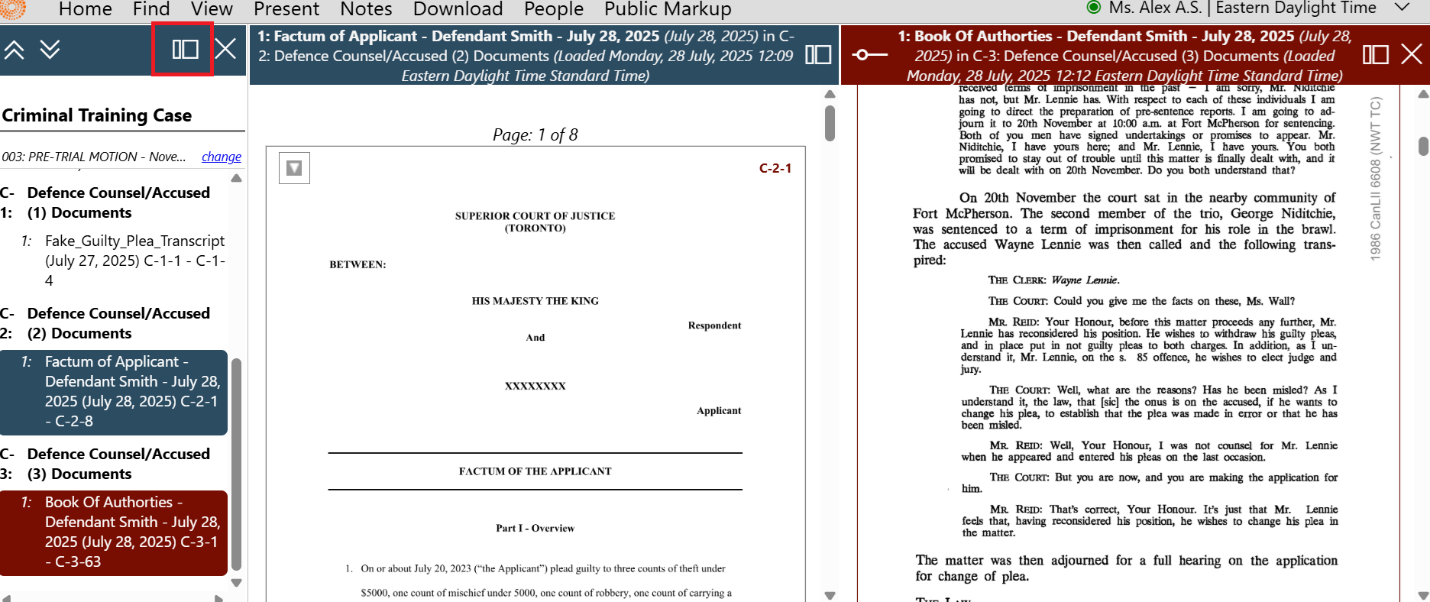
  1. Select the Dual Panes Icon in the top right corner of the document area (i.e., small overlapping rectangles):

  1. This will open a second reading pane so that two documents appear side by side, as shown below:

  • To control which documents appear on your screen:
    1. Click on the Active Pane Icon (i.e., a bigger rectangle next to a smaller rectangle, shown above as a red box) in the top of the index header. This should change the icon so that the larger rectangle is on the right.
    2. Select another document from the index, this will now display in the right-hand reading pane.
    3. You can change the size of the way documents appear by selecting the icon that looks like a sideways lollipop:

    1. Click the Active Pane Icon again to change the selection in th left-hand reading pane.
    2. Click the “X” in the top right corner of your right-hand reading pane to return to single pane view.

Using the Dual Panes feature is also helpful if the other party wishes to direct everyone to a specific page and you want to keep your place in your material.

A short video on the dual panes feature is here: https://training.thomsonreuters.ca/media/1_vt90051i

Case Center has multiple features for making notes and highlighting documents.

Select “Notes” from the top of the screen. Case Center has the following note options:

  • Add a Case Note – This will add a note that applies to the whole case.
  • Add a Page Note – This will add a note to a specific area of the document. Case Center will link that note to the specific page in the document so you can easily access that page from the Notes field. You can choose to either draw a box around the area, draw freehand around the area or highlight text.
  • Add Pen Notes – This will highlight, draw, strikethrough or underline any area of the page.

Notes will be visible in the right, notes area. By default, notes will be marked “Private”. This means the notes you make will only appear to you. The presiding judicial officer, court staff, other counsel and parties will be unable to see these notes, even if you are using Case Center’s “Presentation” mode.

A Case Note or a Page Note can also be shared if counsel or parties select the “Group” or “Widely Shared” option. Selecting one of these will make the note visible to other participants with access to the case.

If counsel or parties notice a document has been inappropriately uploaded by opposing counsel or parties, apply a Case Note specifying the document and why it should not have been uploaded. Make sure to save this note as “Widely Shared” so the judicial officer can see it when reviewing the case.

More information regarding notes is available here: https://training.thomsonreuters.ca/media/1_g7fsrjo6


Other useful links: